



Highflybet Mobile Access
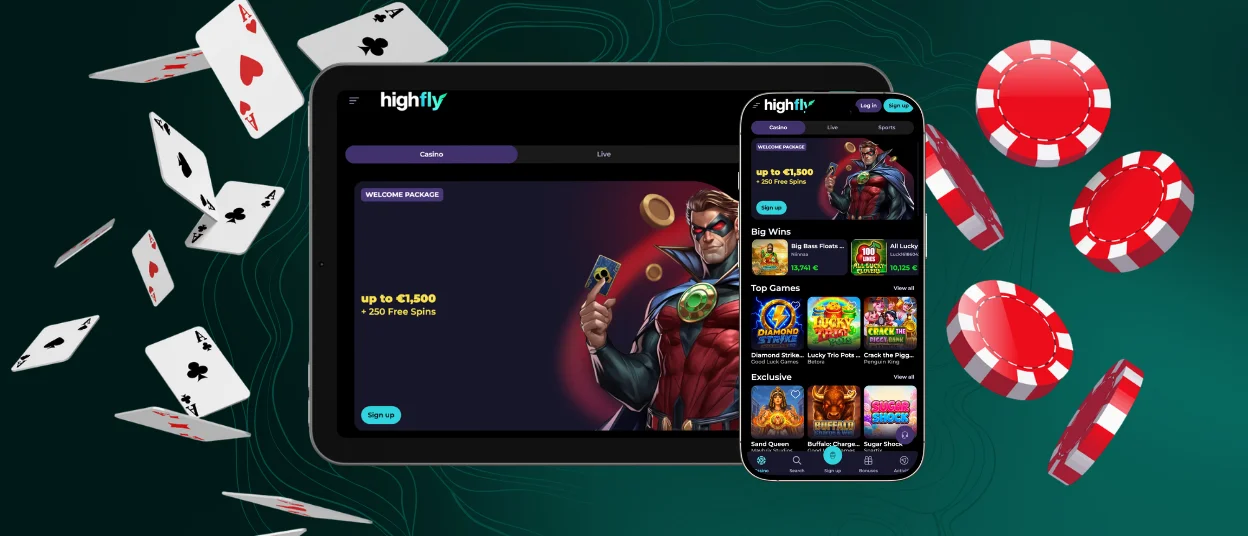
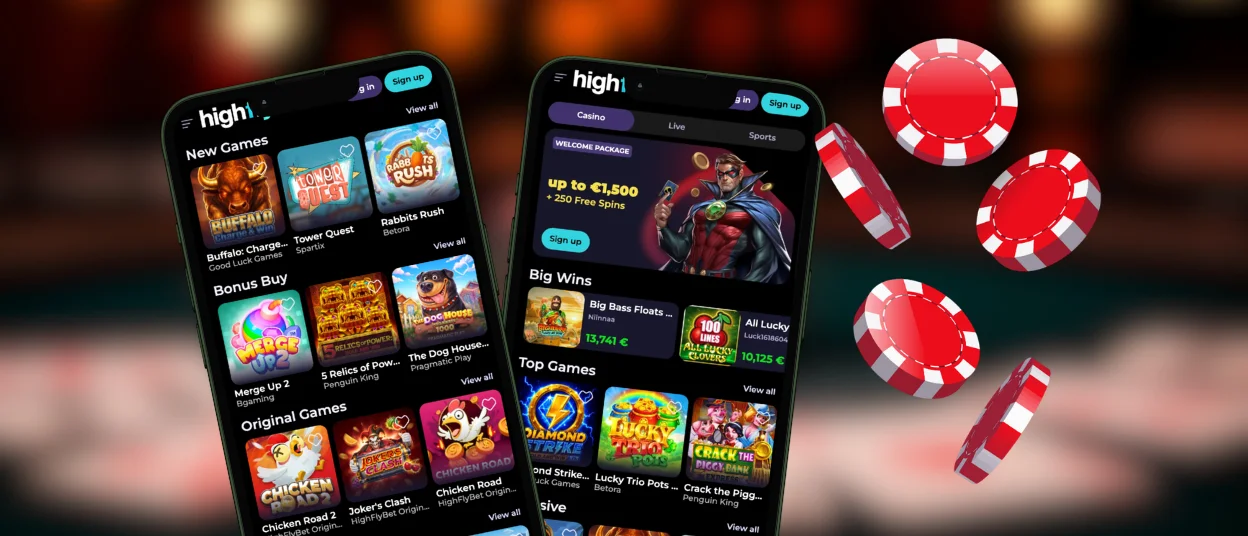
The Highflybet app runs as a Progressive Web App straight through your mobile browser. Saving the shortcut icon to your home screen takes seconds and opens a clean, full-screen setup. All 6,000+ games, live dealer tables, sports markets, and wallet options carry over intact and are easy to find in our mobile casino.



Using Highfly Bet on Mobile
You can open Highflybet Casino in a regular browser tab. Another option is to launch it through your saved home screen app. It changes the day-to-day experience in a few practical ways.
- The most immediate difference is how much room you gain. The web app strips away address bars, tab counters, and browser control buttons. Your entire display fills up with the game lobby or live dealer feed.
- When you save the Highflybet app to your home screen, your device caches core layout graphics locally.
- Active mobile browsers run multiple background scripts that draw heavily on your device’s processor. The standalone PWA framework manages phone resources more efficiently, keeping your device cooler and saving battery life during longer playing sessions.
- A browser tab goes completely quiet the moment you close it. The web app, however, allows optional push notifications to drop straight to your lock screen so you know the moment cashback lands or a Highflybet Casino tournament begins.
Highfly Bet App for Android
Setting up the shortcut on an Android phone takes about ten seconds using Chrome. You don’t need any third-party APK files to upgrade your overall mobile gaming experience.
- Open Chrome and head to the Highflybet Casino site.
- Give the page a moment to load completely. If a banner pops up near the bottom of your screen asking to install the app, tap it to jump straight to the end.
- If no banner shows up, tap the three vertical dots in the top right corner of Chrome.
- Select “Add to Home Screen” from the menu options.
- Keep the default shortcut name or edit it, then tap “Add.”
The Highflybet app icon drops right onto your main home screen grid within seconds. Opening it launches your favorite online slots and live tables in dedicated full-screen mode, hiding the address bar so you get maximum room on your display.
PWA
A Progressive Web App (PWA) is essentially a lightweight shortcut that lets a Highflybet website run like a native phone app. It saves a simple launcher straight onto your home screen. You get full-screen play, quick page loads, and lock-screen alerts.
Laying out your mobile options side by side shows how each method handles screen space, battery pull, and day-to-day speed:
| Access Method | Setup Effort | Visual Setup | Resource Drain | Verdict |
| Saved PWA App | Around 10 seconds through the browser menu | Full-screen mode without browser bars or menus | Low battery use; cached layout helps the Highfly Bet app start faster | Best choice for regular sessions, fast logins, and lock-screen updates |
| Standard Mobile Browser | No setup; you simply type the site URL | Browser address bars and tabs take up space at the top and bottom | Higher battery use because graphics reload on every visit | Good for a quick one-off check or testing free demo games |
| Heavy Native Store App | 100MB+ download plus manual updates | Standard app layout with permanent device storage use | Higher background RAM use and more storage drain | Less convenient if you want lightweight access without updates |
Highflybet App for iOS
If you’re on an iPhone or iPad, Apple routes web app shortcuts strictly through Safari. The setup takes less than thirty seconds from start to finish:
- Open Safari and pull up the main Highflybet Casino page.
- Tap the upward arrow at the bottom of your screen.
- Scroll down the menu list and tap “Add to Home Screen.”
- Keep the default label or give it a custom name, then tap “Add” in the top right corner.
Lock-screen notifications for web apps require iOS 16.4 or newer. If your device is running an older system version, the Highflybet app still works completely. You can top up your balance, load games, and reach out to the support team through live chat, though you won’t get pop-up alerts on your lock screen.
Desktop App for Windows and macOS
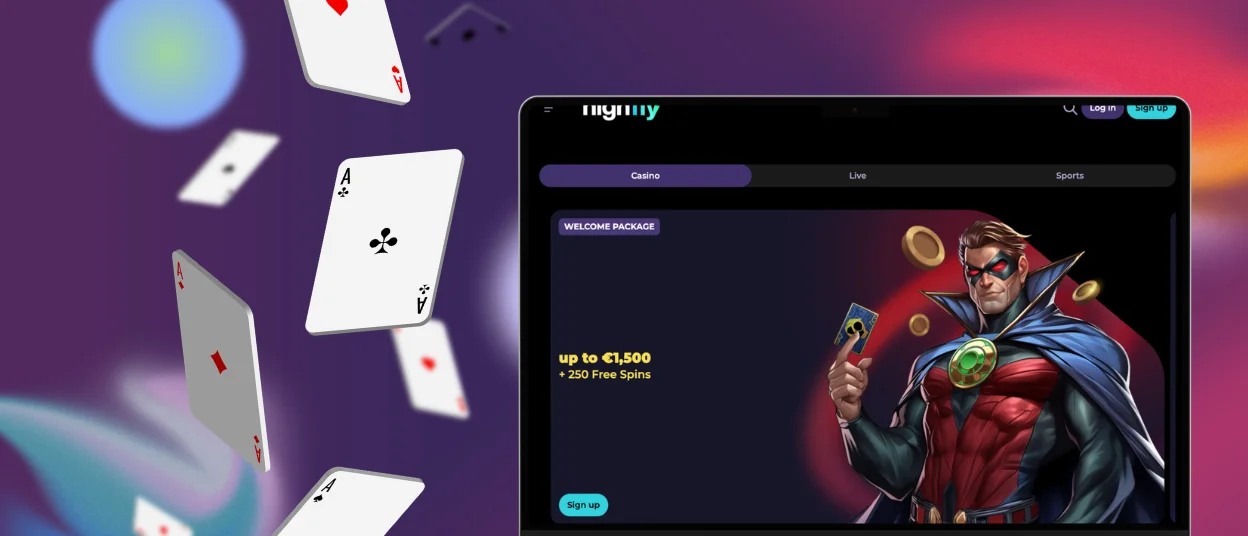
When you pull up Highfly Bet in Chrome or Edge, look right inside your web address bar for a small computer icon with a download arrow. Clicking that icon and confirming the prompt drops a standalone launcher onto your desktop, taskbar, or Mac dock in a couple of seconds.
Now the platform runs in its own dedicated window. It opens faster and supports native desktop alerts for live sports bets. The Highflybet Casino app also gives you a clean space to handle account administration, such as checking your identity verification process or managing payments, without extra screen clutter. The setup works identically on Windows and macOS.
FAQ
Is creating an account required to use the Highfly Bet app?
The Highflybet app can be installed without an account, and demo mode is available on most casino games without registering. Everything beyond that (deposits, withdrawals, real money play, bonus access, sports betting, tournament participation) requires a registered account. Creating one takes a few minutes.
Does the Highflybet Casino app offer customer support?
Yes. The Highflybet support team is reachable through the mobile casino in exactly the same way as on the desktop site. Live chat operates 24 hours a day and connects to the same team that handles desktop inquiries. Multilingual support is available through live chat and email.
How can I update the Highfly Bet Casino app?
Nothing needs to be done. This is one of the practical advantages of the PWA format over conventional downloaded apps. Updates apply automatically every time the app is opened, before the session starts. The version running is always the current one.


